DataFlows SMS for Microsoft Teams
Send & receive SMS inside your Teams channels
Turn Microsoft Teams into a shared, two-way SMS inbox for your whole team. Assign virtual numbers to channels, reply from Teams, and track conversations with powerful dashboards and reports.
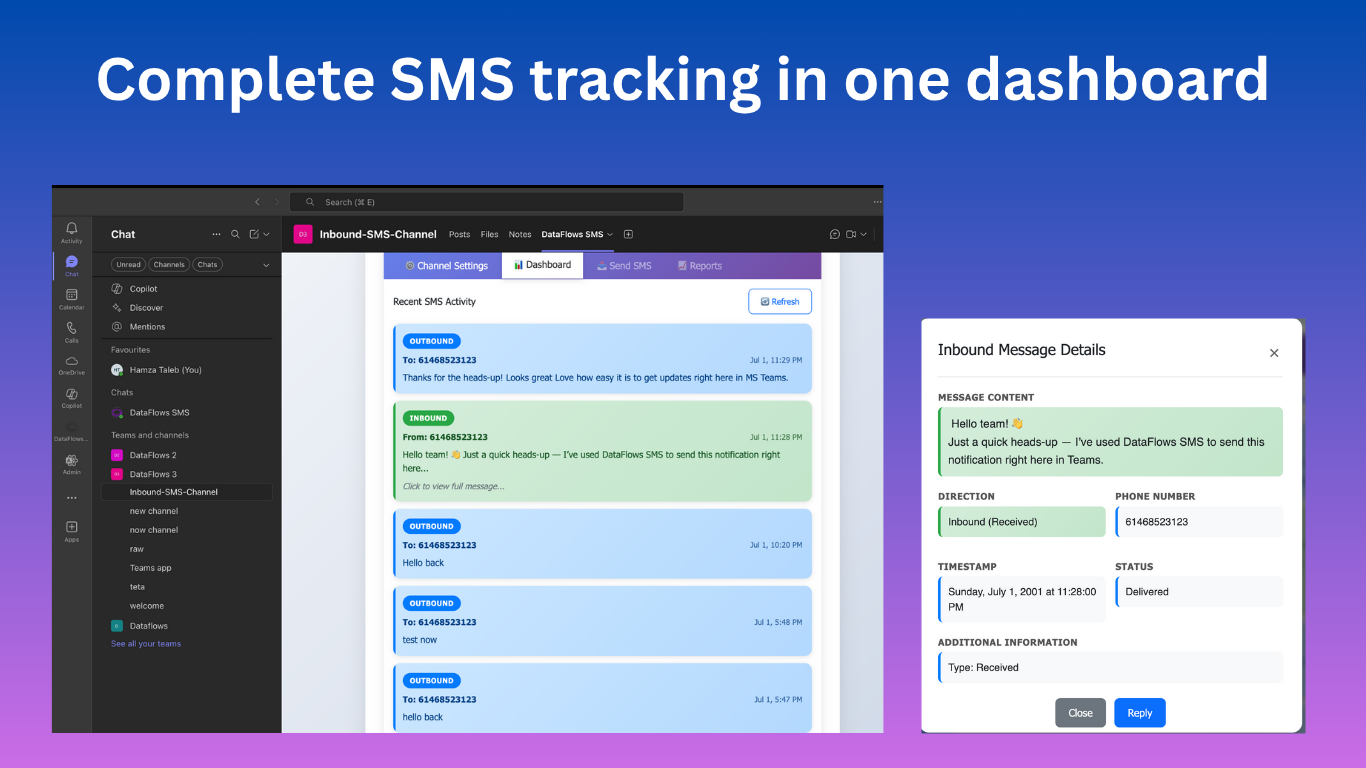
See DataFlows Teams Integration in Action
Watch how seamlessly SMS messages integrate with your Teams workflow, from receiving customer messages to sending replies and tracking analytics.
Powerful Features for Team Collaboration
Everything you need to manage SMS communications effectively within Microsoft Teams
Channel-level Virtual Numbers
Assign dedicated virtual numbers to each Teams channel. This makes every channel a shared inbox where all messages are visible to the team. Numbers can be local or international, and administrators can manage which channels accept inbound messages.
Two-way Messaging & Threading
Inbound messages are stored as threaded conversations in Teams; replies preserve continuity and maintain a single conversation per contact. Messages support media attachments where permitted and retain full metadata for auditing.
Advanced Dashboard & Reporting
Visualize message traffic with heatmaps, direction indicators (inbound/outbound), and per-channel stats. Filter by date range, export CSVs for compliance, and view cost summaries so finance teams can reconcile SMS spend accurately.
Sender ID & Brand Control
Configure Sender IDs per channel (where regulations allow) to present a consistent brand identity. Validate numbers and track segmentation to ensure messages appear correctly across carriers.
How It Works in Practice
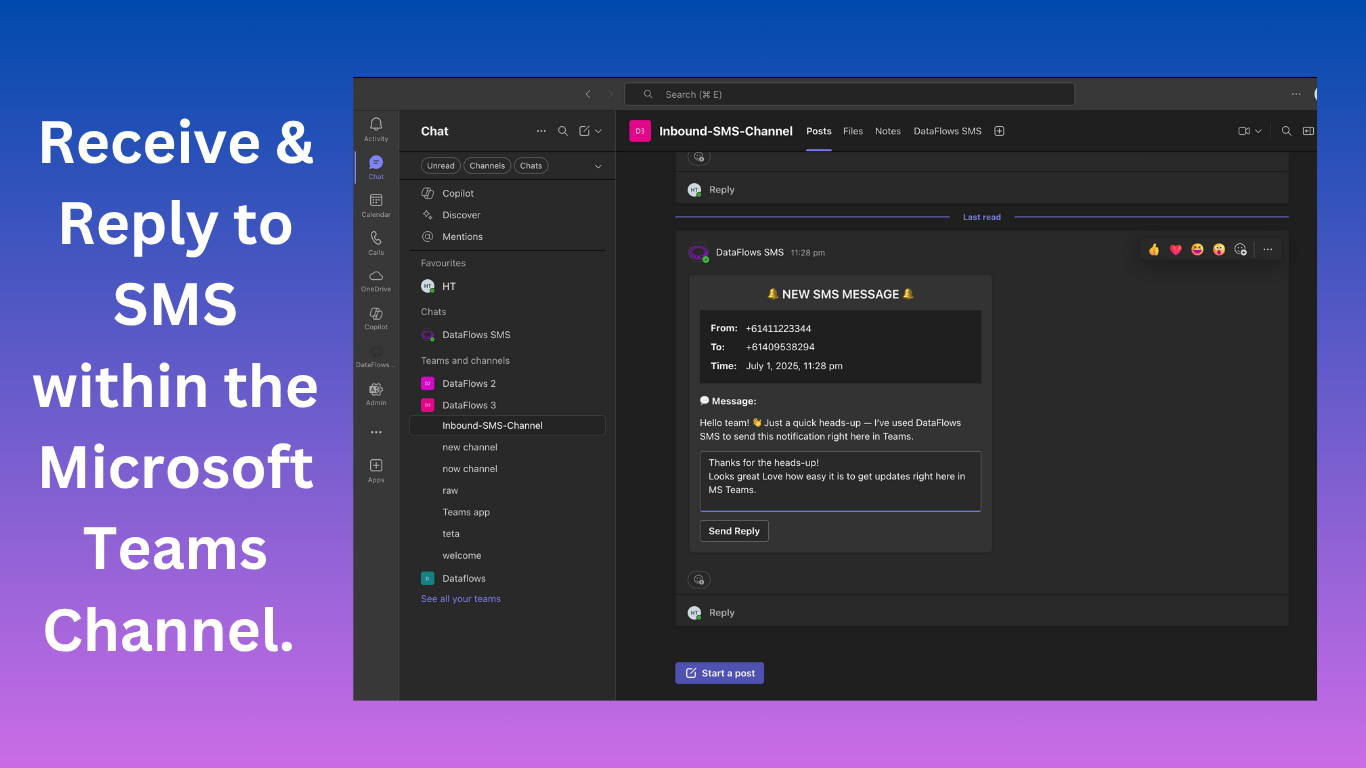
Receive Customer Messages
Inbound SMS messages appear directly in your Teams channel with full sender details and message content. Team members get instant notifications and can view the complete conversation history.
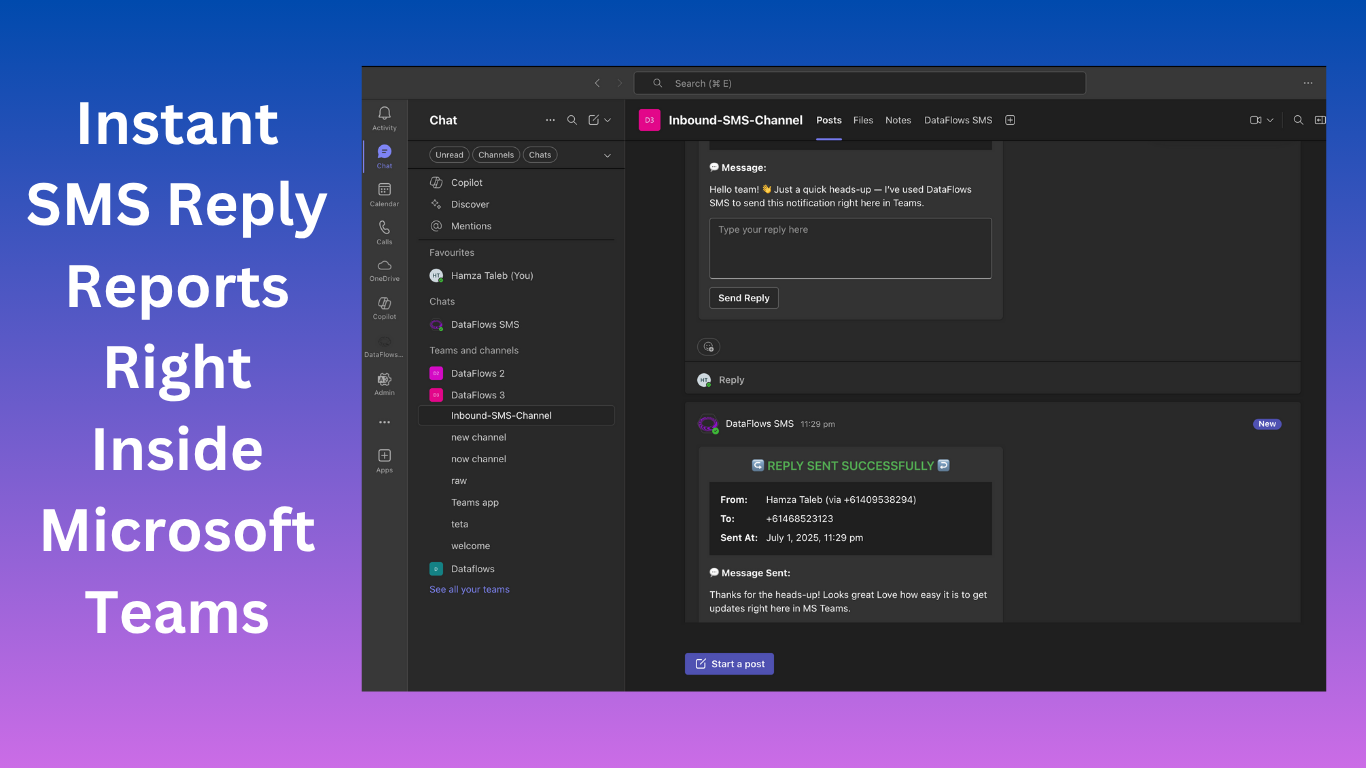
Send Replies with Confirmation
Reply to SMS messages directly from Teams with instant delivery confirmation. Track message status, delivery time, and costs all within the Teams interface.
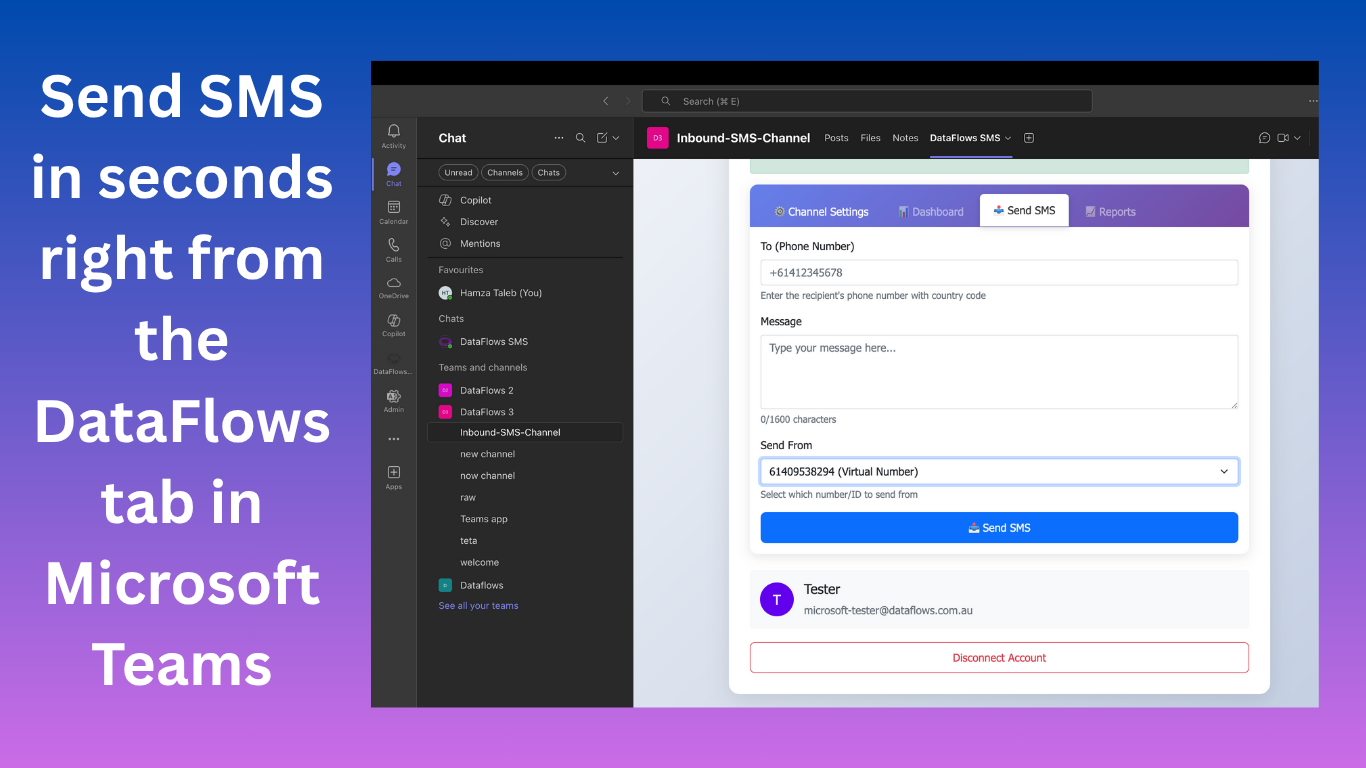
Compose New Messages
Send new SMS messages to customers directly from Teams. Select your sender ID, choose recipients, and track character count with real-time cost estimation.
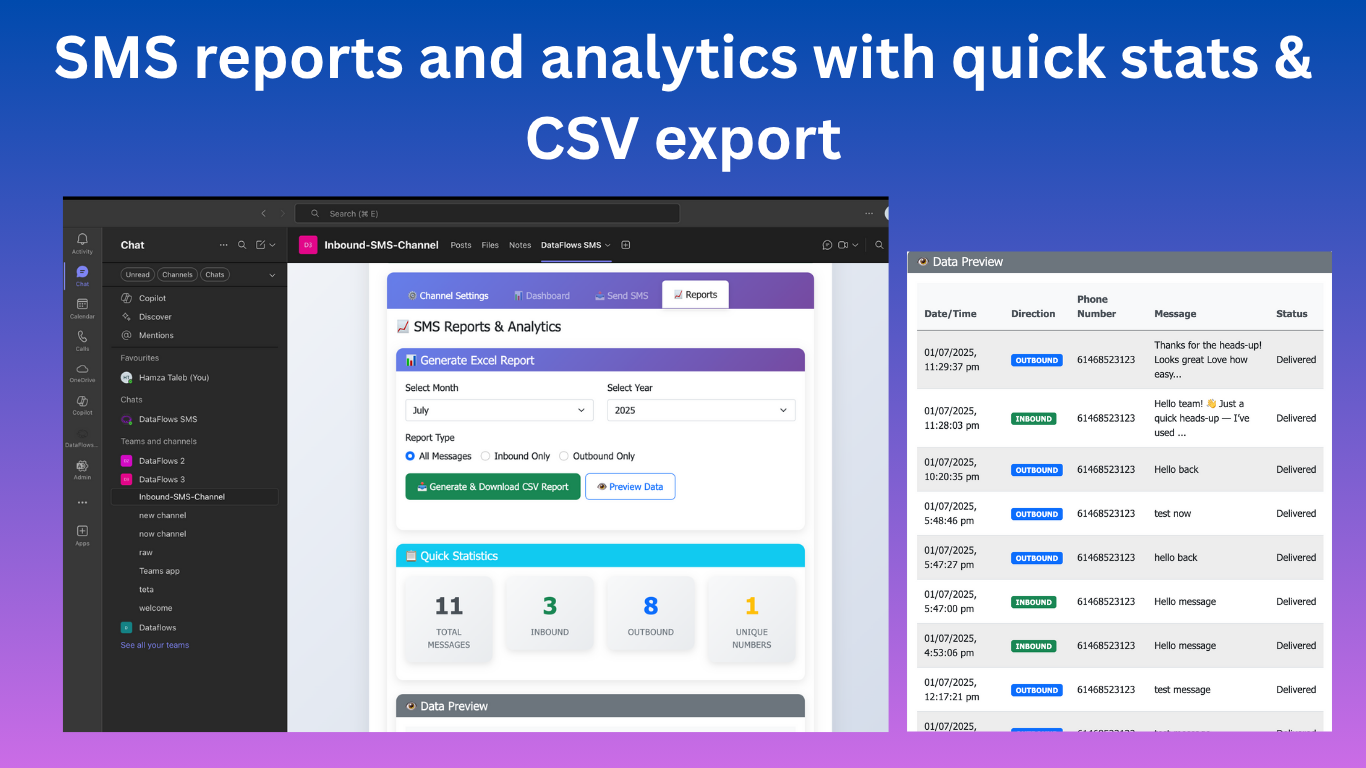
Analytics & Reporting
Access comprehensive SMS analytics with message statistics, delivery reports, and cost tracking. Export data to CSV for compliance and financial reporting.
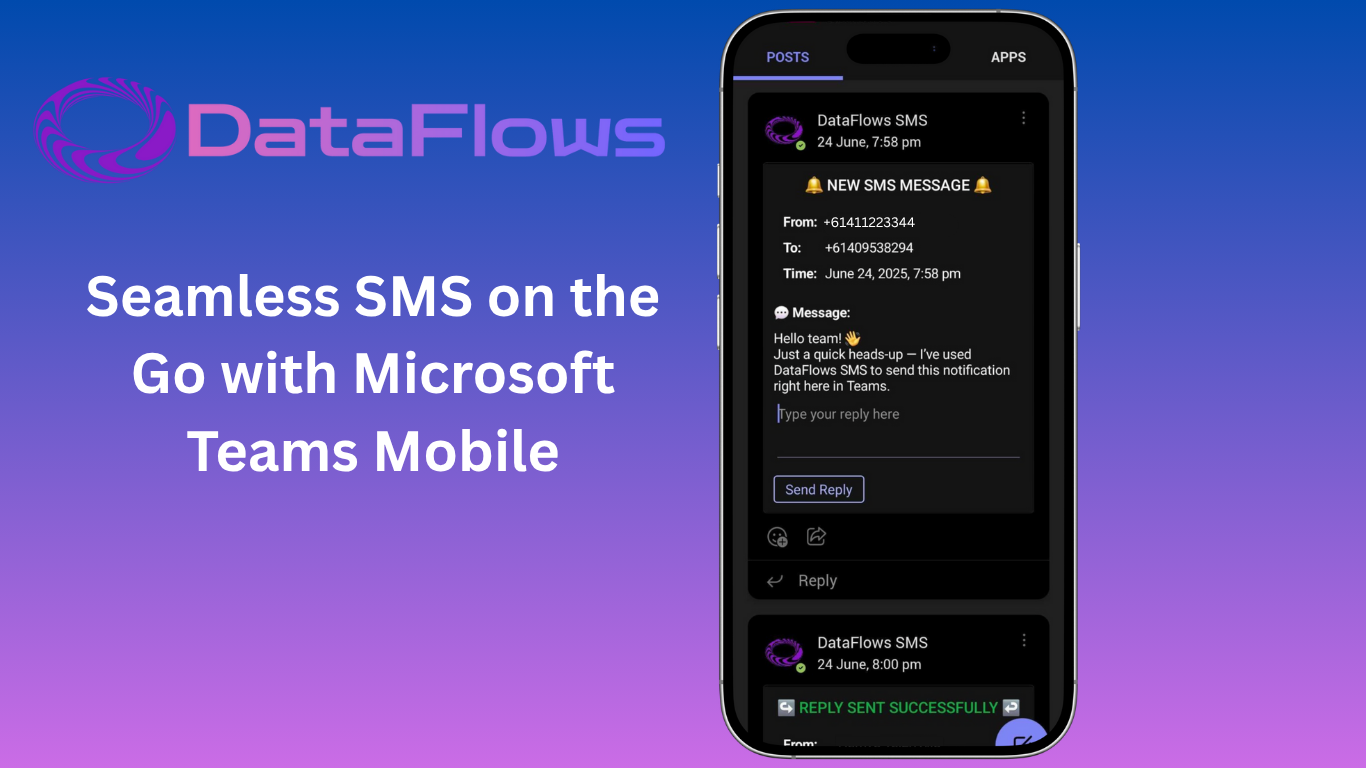
Seamless Mobile Experience
Take your SMS conversations on the go with Microsoft Teams mobile. Reply to customer messages, send new SMS, and track delivery status from anywhere.
- Centralised customer communication inside the collaboration tool your teams already use
- Faster response times — reply in channel instead of switching apps
- Shared ownership: any available agent can reply, improving SLAs and reducing missed messages
- Auditability: conversation history is preserved, and exports support compliance reviews
Get Started in 4 Simple Steps
Set up DataFlows SMS for Microsoft Teams in minutes, not hours
Assign Virtual Numbers
Admin: assign virtual numbers to channels under Settings → Channels
Start Messaging
Begin receiving and sending SMS messages immediately
Simple, Transparent Pricing
Frequently Asked Questions
How do I assign a number to a Teams channel?
In your DataFlows dashboard, navigate to Settings → Channels. Select the channel and assign an available virtual number. The channel will immediately start receiving inbound messages for that number.
Can multiple channels share a number?
No, each virtual number can only be assigned to one channel at a time. This ensures message routing clarity and prevents confusion in team communications.
Are inbound messages stored in Azure?
Messages are securely stored in DataFlows' infrastructure with end-to-end encryption. We provide configurable retention policies and can integrate with your Azure compliance requirements for enterprise customers.
What happens if a team member leaves?
Channel-based messaging ensures continuity. When team members leave, their message history remains in the channel for context, and remaining team members can continue conversations seamlessly.
Ready to Transform Your Team Communication?
Join thousands of teams using DataFlows SMS for Microsoft Teams to streamline customer communications